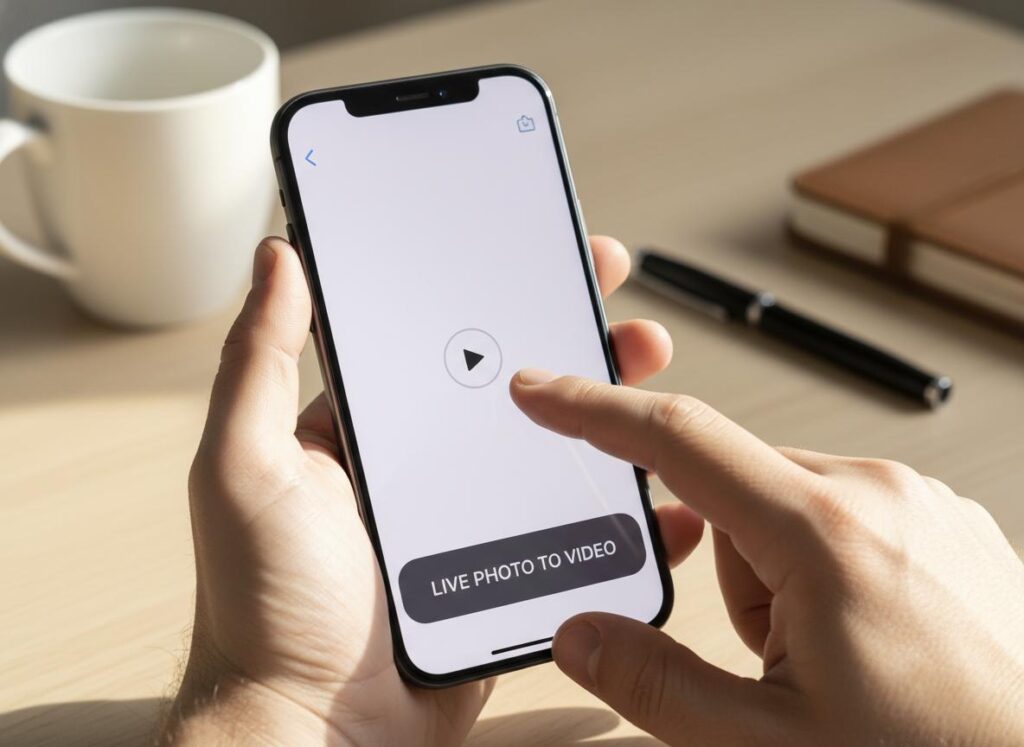
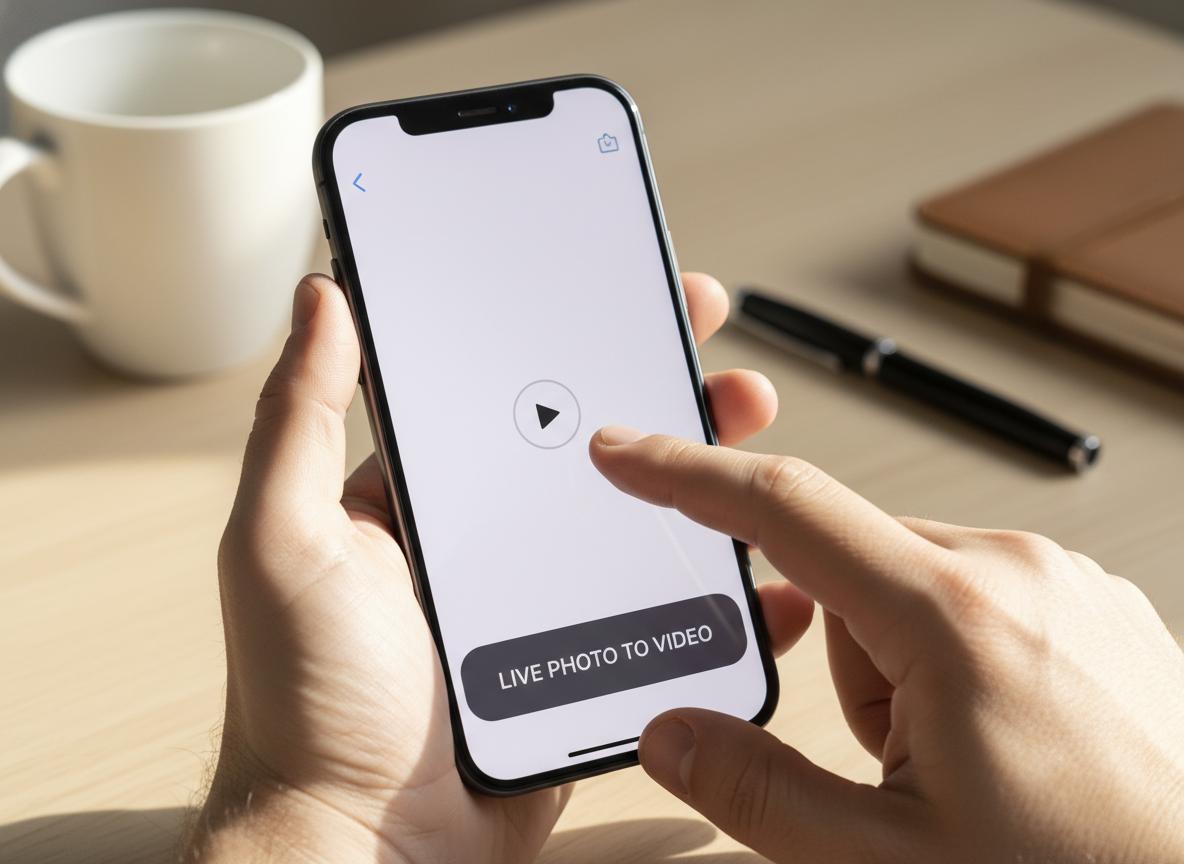
Have you ever captured a perfect Live Photo, full of life and sound, only to realize you can’t share that moving moment on Instagram or with friends on Android? It’s a common frustration. You’re left with just a static image, losing the magic of the memory. Fortunately, the solution is already built into your iPhone, allowing you to easily convert those living memories into shareable videos for everyone to enjoy.
Why Turn a Live Photo Into a Video in the First Place?
Quick Answer: Converting a Live Photo to video ensures compatibility across non-Apple devices and social platforms, allowing you to preserve motion and sound where static formats like HEIC or JPEG cannot.
Sharing Your Memories on Any Platform: Instagram, TikTok, and More
While the Apple ecosystem handles Live Photos beautifully, third-party apps often struggle. When you upload a raw Live Photo directly to Instagram Stories or a standard Facebook post, it frequently appears as a still image. If you are looking for live photo to video for Instagram or want to turn live photos into video TikTok trends, converting the file first is the safest bet. This ensures your social media followers see the full context of the moment, rather than just a frozen frame.
Sending Moving Pictures to Friends and Family Without an iPhone
Sharing between iOS and Android is a notorious pain point. If you send a Live Photo to an Android user via SMS or WhatsApp, they will likely receive a static JPG. To bridge this gap, you need to know how to convert live photo to video on iPhone before hitting send. This creates a universal MP4 or MOV file that plays perfectly on any device, ensuring your grandmother or friend on Android can experience the moment exactly as you captured it.
Gaining More Editing Control Over Your Captures
Static images limit your creativity. By learning how to save live photo as video, you unlock the ability to use advanced editing apps. Once it is a video file, you can import it into tools like CapCut to add music, voiceovers, or combine it with other clips. Whether you want to make video from photos iphone free using the native editor or use a live photo to video converter app, starting with a video file is essential for high-quality editing.
The Easiest Way: Using Your iPhone’s Built-in Photos App
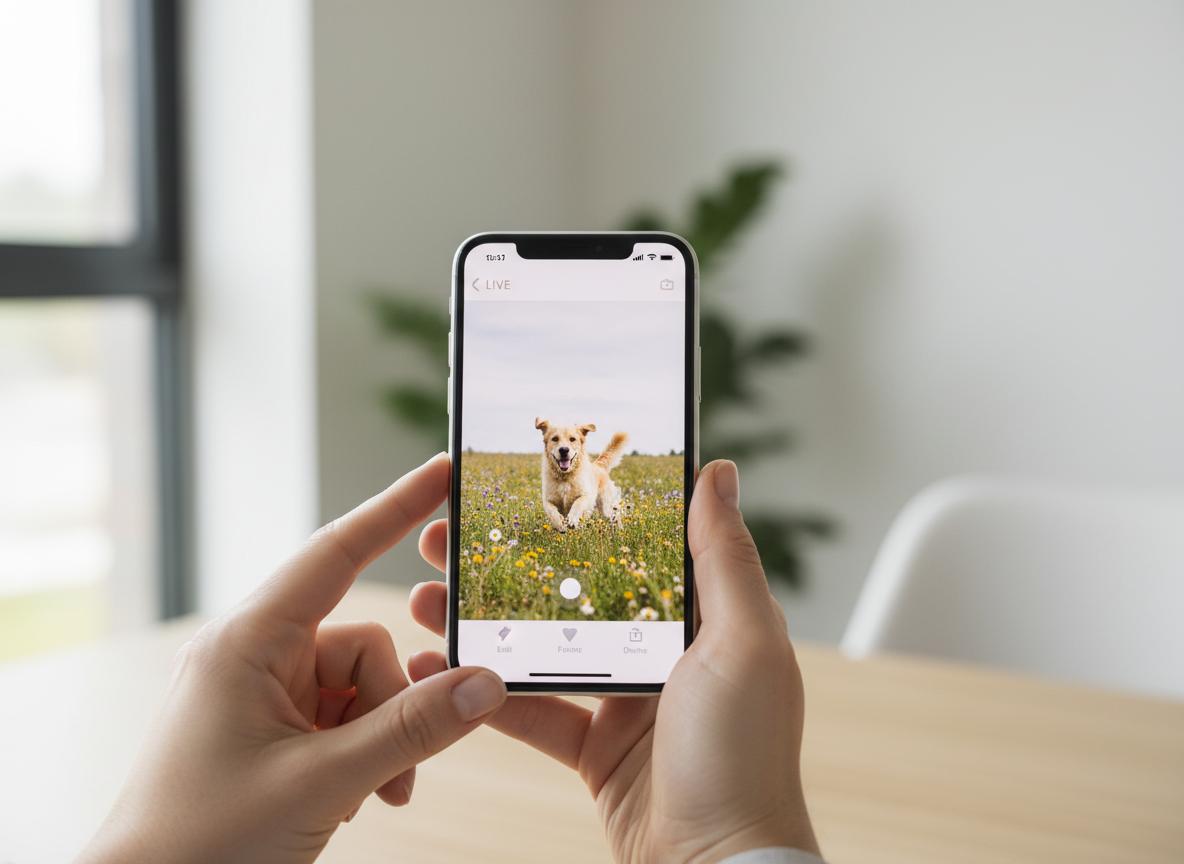
Quick Answer: The fastest method is to open the Live Photo in the Photos app, tap the Share button, and select “Save as Video” to instantly create a standalone video file in your camera roll.
How to Save a Single Live Photo as a Video with Sound
This is the standard method for most users who want to know how to turn live photo into video while keeping the original audio intact.
- Open the Photos app and find the Live Photo you want to convert.
- Tap the Share button (the square with an arrow pointing up).
- Scroll down the menu and tap Save as Video.
- The app will process the file and save a new video clip in your recently saved album (or Recents).
Note: This method creates a live photo to video with sound. At LIEN MMO, we recommend this method for capturing genuine moments like a child’s laughter or a concert snippet where audio is crucial.
How to Turn Multiple Live Photos Into One Continuous Video
Did you know you can turn multiple live photos into video clips that play back-to-back? This is perfect for creating a quick recap of an event without using external editors.
- Go to your camera roll or the “Live Photos” album.
- Tap “Select” in the top right corner.
- Choose the Live Photos you want to combine.
- Tap the Share button and select Save as Video.
The iPhone will stitch these clips together into a single video file. This is a fantastic way to make a live photo a video montage instantly.
| Feature | Single Conversion | Batch Conversion |
|---|---|---|
| Input | 1 Live Photo | 2+ Live Photos |
| Output | 1 Short Video Clip | 1 Continuous Video File |
| Audio | Preserved | Preserved (Sequential) |
| Best For | Instagram Stories, TikTok | Quick Recaps, Memories |
Getting Creative: Beyond a Simple Conversion
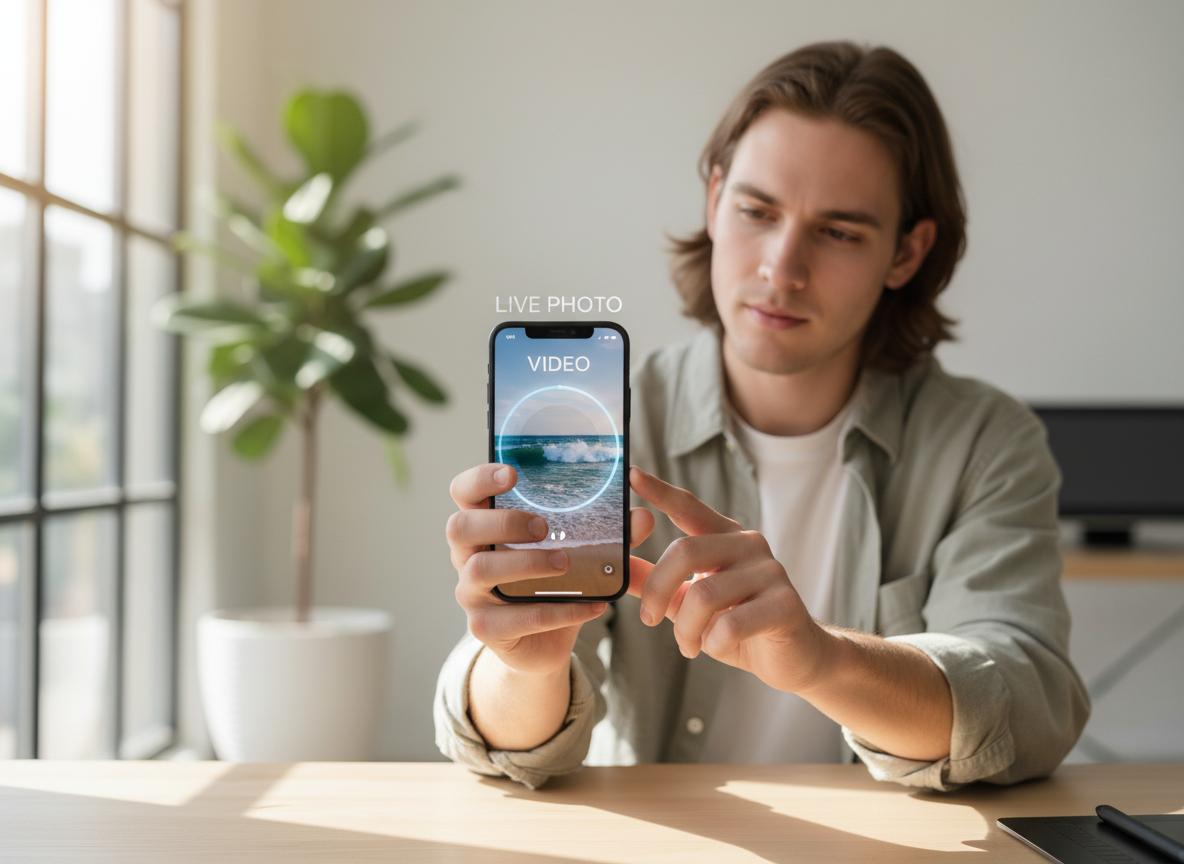
Quick Answer: You can use the “Loop” or “Bounce” effects directly in the Photos app to transform Live Photos into repeating animations, similar to a GIF or Boomerang, without needing third-party tools.
How to Turn a Live Photo into a Boomerang (Bounce Effect)
If you want to turn live photo into boomerang, Apple has a native feature called “Bounce.”
- Open your Live Photo.
- Tap on the “Live” drop-down menu in the top left corner.
- Select Bounce.
The image will now rock back and forth. While this is visually fun, note that the Bounce effect usually removes audio. If you want to share this, you can then use the “Save as Video” method mentioned above to save live picture as video format (MP4/MOV) to share on social media.
Creating a Seamless Loop Effect for Social Media
The Loop effect blurs the transition between the end and the start of the recording, making it perfect for continuous motion like waterfalls or rain.
- Open the Live Photo.
- Tap the “Live” menu (top left).
- Select Loop.
This essentially turns your photo into a high-quality GIF. To share it, simply save it as a video. This is a great trick for creating engaging live wallpaper content or background visuals.
Using Third-Party Apps for Advanced Edits and Effects
Sometimes the native tools aren’t enough. If you are looking for how to turn a video into a live photo capcut or want to add complex transitions, third-party apps are necessary.
- CapCut/InShot: Great for stitching videos and adding trending music.
- TikTok: You can upload a Live Photo directly, and TikTok often converts it. Conversely, users often search how to turn video into live photo without app for their wallpapers, but apps like IntoLive are often required for the reverse process.
- Converter Apps: A dedicated live photo to video converter app can help if you need specific file formats or compression settings.
At LIEN MMO, we test various SaaS tools and find that while native features are best for quality, apps like CapCut offer the creative flexibility needed for viral content.
Important Things to Know & Troubleshooting
Quick Answer: If you cannot find “Save as Video,” ensure your photo is not set to “Loop” or “Bounce.” Also, be aware that Live Photos use HEIC/MOV containers, so converting to MP4 ensures maximum compatibility.
Is the “Save as Video” Option Missing? Here’s Why
A common question we see is: “Why can’t I convert live photo to MP4 on iPhone; the option is gone?”
The Save as Video option often disappears if you have already applied an effect like Loop or Bounce.
- Fix: Open the photo, tap the effect label (top left), and switch it back to Live. The “Save as Video” option should reappear in the Share button menu.
Understanding Video Format (MP4/MOV) and Sound Preservation
When you make a live photo a video, Apple typically saves it as a .MOV file using the HEVC codec.
- Compatibility: Most modern platforms (Instagram, TikTok) accept this.
- Sound: Live photo to video with sound works perfectly with the standard conversion. However, Bounce effect usually strips sound.
- Android: If you need to convert live photo to video android compatible formats, the native .MOV usually works, but sending it via a messaging app that supports files (like Telegram or WhatsApp Documents) prevents compression.
iOS Version Requirements for Converting Live Photos
The ability to save live picture as video natively was introduced in iOS 13.
- Older iOS: If you are on an old version, you might need a third-party app.
- Newer iOS: From iOS 16 to future iterations (even looking ahead to concepts like ios 26), Apple continues to refine the Photos app.
- Feature Availability: Ensure your camera settings have Live Photo enabled (how to turn on live photos on iphone: tap the circle icon in the camera app) to ensure you are capturing these moments in the first place.
Conclusion
Unlocking the full potential of your Live Photos is surprisingly simple. You don’t need fancy editing apps or technical skills to transform these fleeting moments into lasting, shareable videos. By following these straightforward tips directly within the Photos app—whether it’s a simple save, a batch conversion, or a creative loop—you can ensure the smiles, sounds, and movements you capture can be cherished and shared with anyone, on any platform, preserving your memories in their truest form.
Try converting one of your favorite Live Photos right now and see how easy it is! Share your creations with us or let us know in the comments if you have any questions.