Unleash your creativity and save time with versatile Canva layouts. This guide reveals the best quick and easy design solutions for any project, from stunning social media graphics to professional business presentations. Discover how to effortlessly create high-impact visuals that captivate your audience and elevate your brand, even with no prior design experience. Say goodbye to design overwhelm and hello to beautiful, effective content in minutes.

What Are Canva Layouts and Why Should You Use Them?
Canva layouts are essentially pre-designed templates crafted by professional designers. They provide a foundational structure for various projects, including everything from Instagram posts and flyers to multi-page presentations and brochures. Instead of starting with a blank canvas, you begin with a visually balanced arrangement of elements like text boxes, image placeholders, and graphic components.
The primary advantage of using these layouts is efficiency. For small business owners, marketers, and content creators juggling multiple responsibilities, they are a game-changer. They eliminate the need for extensive design knowledge and significantly cut down the time it takes to produce high-quality visual content.
The Time-Saving Magic of Pre-Designed Layouts
One of the most significant pain points for those without a design background is the time it takes to create something that looks good. Pre-designed Canva layouts solve this by providing a professional framework. This means less time spent on the technical aspects of design, such as spacing, typography, and color theory, and more time focusing on the core message of your content.
Ensuring Brand Consistency with a Single Click
Maintaining a consistent brand image across all platforms is crucial for building recognition and trust. Canva simplifies this process immensely. You can customize layouts with your specific brand colors, fonts, and logos using the Brand Kit feature. Once customized, these templates can be saved and reused, ensuring every piece of content you produce is perfectly aligned with your brand identity.
Professional Designs Without the Professional Price Tag
Hiring a graphic designer for every project can be costly, especially for startups and small businesses on a tight budget. Canva’s vast library of free and pro layouts offers a cost-effective alternative. It empowers entrepreneurs and marketers to create everything from marketing materials to digital products without incurring the high costs associated with professional design services.
Finding the Perfect Layout: A Step-by-Step Guide
With thousands of options available, finding the right layout might seem daunting. However, Canva’s user-friendly interface makes the process straightforward. Knowing how to navigate the template library and use targeted keywords can help you pinpoint the perfect design for your needs in seconds.
Canva’s template library is organized by category and format. From the homepage, you can browse popular categories like “Social Media,” “Presentations,” “Video,” and “Print Products.” This intuitive categorization helps you quickly narrow down your options based on the specific type of project you are working on, whether it’s a YouTube thumbnail or a business card.
Using Keywords to Find Niche-Specific Layouts
For more specific needs, the search bar is your best friend. Using descriptive keywords can yield highly relevant results. For instance, instead of a generic search for “social media post,” try “real estate Instagram post” or “cafe menu flyer.” This approach helps you discover niche-specific Canva templates for small business needs that are tailored to your industry.
How to Filter for Free vs. Pro Layouts
Canva operates on a freemium model, offering a mix of free and premium (Pro) templates. To find free Canva layouts, you can use the filter options available in the search results. Simply look for the filter icon (often represented by three sliders) and select “Free” under the price category. This ensures you only see templates that are available without a Canva Pro subscription.
Top Canva Layouts for Maximum Impact
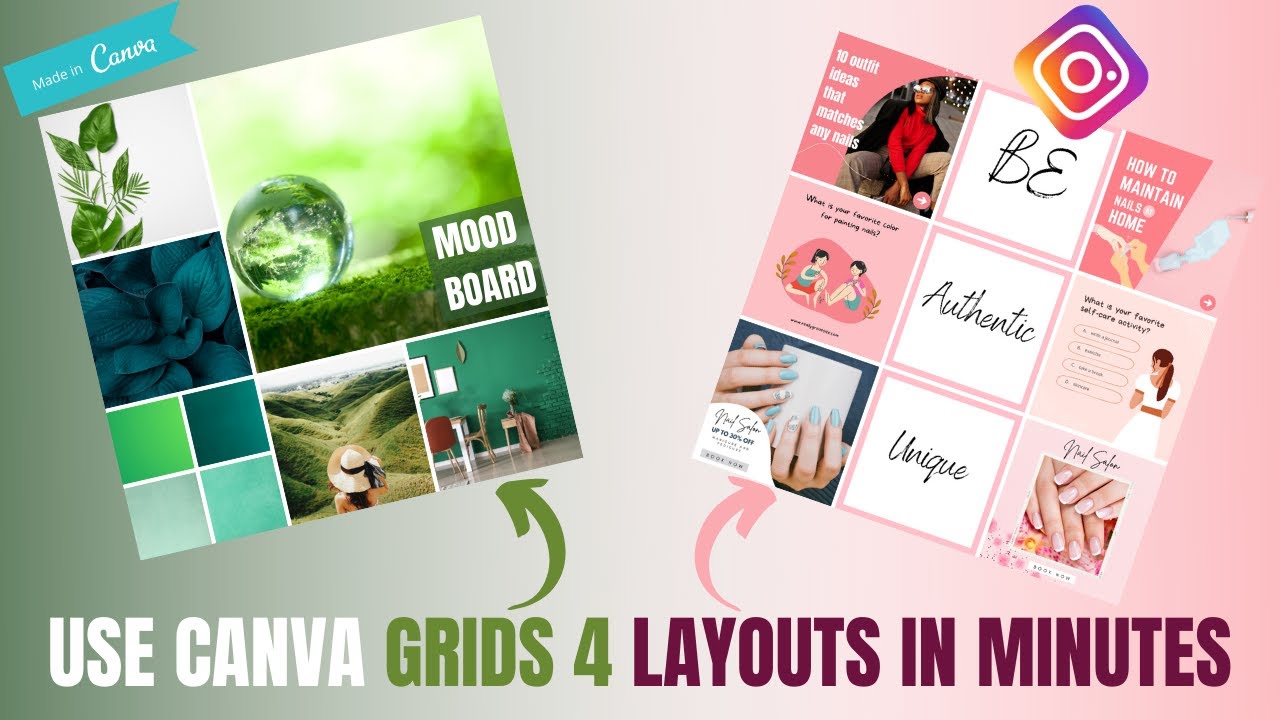
Certain projects are common across almost every business and personal brand. Canva excels in providing high-impact layouts for these essential needs, helping you create engaging and professional content that stands out. Here you can find some great canva layout ideas.
Best Canva Layouts for Social Media Engagement
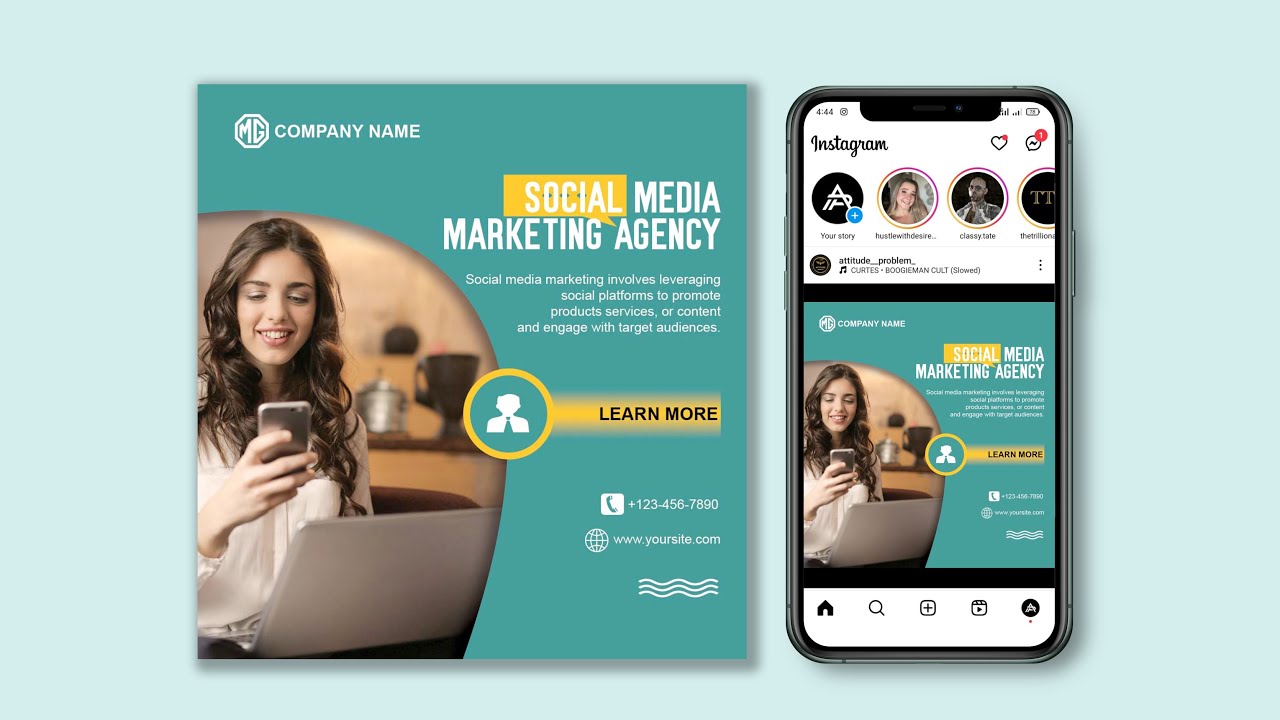
Visuals are key to stopping the scroll on crowded social media feeds. Canva offers an extensive range of layouts specifically designed for platforms like Instagram, Facebook, LinkedIn, and TikTok. Look for carousel post templates to tell a story, quote graphics to share inspiration, and video templates for dynamic Reels and Stories. These layouts are optimized for each platform’s specific dimensions and audience expectations.
Canva Layouts for Polished Business Presentations
A well-designed presentation can make the difference between a successful pitch and a missed opportunity. Canva’s presentation layouts provide a cohesive slide deck with a variety of slide types, including title pages, data charts, team introductions, and closing statements. These templates ensure your presentation looks polished and professional from start to finish.
Creative Canva Layouts for Marketing Materials
From digital brochures to printable flyers, Canva provides a wealth of layouts for your marketing needs. Whether you’re creating an ebook, a magazine-style lookbook, or a simple infographic, you can find a template that fits your vision. These layouts are designed to present information clearly and attractively, helping you communicate your message effectively.
Customizing Canva Layouts to Fit Your Brand
The true power of Canva layouts lies in their flexibility. Customization is key to transforming a generic template into a unique design that reflects your brand’s personality and message. The platform’s intuitive tools make this process accessible to everyone.
A Guide to Canva’s Drag-and-Drop Editor
Canva’s renowned drag-and-drop editor is at the heart of its user-friendly experience. To customize a layout, simply click on any element you want to change. You can upload your own photos and drop them into image frames, click on text boxes to edit the content, and drag elements around the page to adjust their position. This intuitive interface removes the technical barriers often associated with graphic design software.
Swapping Out Photos, Fonts, and Colors
Personalizing a template is simple. You can replace stock photos with your own images or browse Canva’s extensive media library. To change fonts and colors, select a text box or element and use the toolbar at the top of the editor to apply your brand’s specific color palette and typography. This ensures every design is consistent with your visual identity.
Using Grids to Create Your Own Unique Layouts
For those who want more creative control, Canva’s grid layouts are an excellent tool. Grids are frames that you can drag onto your page to create structured, collage-style designs. You can then drag photos and videos into the different sections of the grid. This feature is perfect for creating mood boards, photo galleries, and dynamic visual comparisons, offering a simple way to build a custom layout from scratch. If you’re looking to modify an existing design, it’s helpful to understand how to change layout in canva.
Pro Tips for Getting the Most Out of Canva Layouts
Once you’ve mastered the basics, a few advanced tips and tricks can help you elevate your designs even further. By leveraging some of Canva’s more powerful features, you can unlock new levels of creativity and efficiency. At LIEN MMO, we’ve helped numerous clients streamline their content creation by integrating these powerful features into their workflow.
Leveraging AI with Magic Design
Canva’s Magic Design is an AI-powered tool that generates a selection of custom templates based on your own media or a simple text prompt. Simply upload an image or describe the design you want, and Magic Design will suggest a variety of layouts tailored to your input. This AI design tool is perfect for overcoming creative blocks and speeding up the initial design process.
Combining and Modifying Layouts for a Custom Look
Don’t be afraid to mix and match elements from different layouts. If you like the text arrangement from one template and the graphic elements from another, you can copy and paste them into a single design. This technique allows you to create a truly unique look that is perfectly suited to your specific content.
Design Tips for a Cohesive and Professional Finish
To ensure your final design looks professional, pay attention to a few key principles. Maintain plenty of white space to avoid a cluttered look. Stick to a limited color palette (2-3 main colors) and a maximum of two complementary fonts. Consistency in your design choices will result in a more polished and visually appealing outcome.
Canva layouts are an invaluable tool for anyone looking to create professional-quality designs without the steep learning curve of traditional design software. By leveraging the vast library of templates and easy-to-use customization features, you can produce stunning visuals for all your personal and professional needs. Start exploring Canva’s layouts today and transform your design process into a simple, enjoyable, and highly effective experience.
Ready to take your designs to the next level? Start creating with Canva today and discover the perfect layout for your next project!