
Tired of manually retyping text from screenshots? This tedious task is not only time-consuming but also prone to errors. Fortunately, AI-powered tools can now instantly and accurately extract text from any image, boosting your productivity. This article unveils the 10 best free and fast AI tools that will transform your screenshots into editable, searchable text in seconds, saving you valuable time and effort.

Why You Should Stop Retyping and Start Using AI Text Extractors
Manual data entry is becoming obsolete as extract text from screenshots AI technology reaches new levels of precision and speed.
Skyrocket Your Productivity: Save Hours of Manual Data Entry
By automating the conversion process, you can reclaim hours previously lost to typing. At LIEN MMO, we have observed that switching to an AI screenshot to text converter online free tool can reduce document processing time by up to 90%. Whether you are a student digitizing notes or a developer capturing error codes, the ability to copy text instantly allows you to focus on high-value tasks rather than rote transcription.
Ensure Flawless Accuracy: Eliminate Costly Typos and Transcription Errors
Human error is inevitable when typing, but an AI tool designed for optical character recognition (OCR) significantly mitigates this risk. Modern AI OCR scanner software uses machine learning to recognize fonts, symbols, and even handwritten text with remarkable precision. This is crucial for professionals dealing with financial data or code, where a single typo can cause significant issues.
Unlock Information Instantly: Make Text Within Images Searchable and Usable
Static images are data silos; you cannot search inside them. An image to text AI converter transforms these “dead” pixels into editable text and searchable formats. This means you can index screenshots of articles, receipts, or scanned documents, making every word retrievable via a simple keyword search later on.
Streamline Your Workflow: Digitize Documents, Notes, and Invoices Effortlessly
Integrating text recognition into your daily routine smoothens workflows. For instance, project managers can snap a screenshot of a bug report and instantly extract the text to paste into Jira. Content creators can grab quotes from video slides using a text extractor and paste them directly into their scripts. This seamless transition from image to word AI processing eliminates friction in digital tasks.
The 10 Best AI Tools To Extract Text From Screenshots in 2025

Here is our curated list of the top AI-powered OCR tools that combine speed, accuracy, and ease of use for various needs.
1. Google Lens: The All-in-One AI Scanner for Mobile Users
Google Lens is arguably the most accessible google lens extract text from screenshot tool available today. Built directly into Android and the Google app on iOS, it leverages Google’s massive data set to provide industry-leading recognition.
- Best For: Mobile users, quick everyday scans, and translating text on the fly.
- Key Features:
- Live Text: Point your camera and copy text in real-time.
- Translation: Instantly translate extracted text into over 100 languages.
- Search: Search the web directly using the text found in the image.
- Our Experience: We find it incredibly useful for grabbing contact info from business cards or copying notes from a whiteboard. It handles multiple languages better than almost any other free tool.
2. Microsoft Copilot (formerly Bing Chat): Integrated AI for Windows and Web
Microsoft Copilot has revolutionized how Windows users interact with their screens. By integrating GPT-4 and Microsoft Azure AI Vision capabilities, it acts as a powerful extract text from image windows AI solution.
- Best For: Windows users and those who want to chat with their screenshots (e.g., “Summarize this screenshot”).
- Key Features:
- Snipping Tool Integration: Extract text directly after taking a screenshot on Windows 11.
- Contextual Understanding: It doesn’t just copy text; it can explain it.
- ChatGPT Integration: Analyze the extracted data immediately.
- Why We Recommend It: It’s free and built-in. You don’t need to install third-party software to extract text from screenshots AI.
3. Apple Live Text: Seamless Text Recognition for Mac and iPhone
For the Apple ecosystem, Apple Live Text is the gold standard for extract text from image mac AI and extract text from screenshot iphone AI. It treats text in images exactly like text in a document.
- Best For: Apple users (Mac, iPhone, iPad).
- Key Features:
- Native Integration: Select text in Photos, Camera, or Quick Look just like you would in a Word doc.
- Data Detectors: Automatically recognizes phone numbers, emails, and addresses for one-tap actions.
- Privacy: All processing happens on-device, ensuring your data stays private.
- Our Take: The “magic” factor here is high. Being able to copy text from images AI directly from a paused video frame is a game-changer for students.
4. Nanonets: Best AI OCR for Professionals and Businesses
Nanonets is a powerhouse OCR scanner designed for automated document processing. While it has a paid tier, its free features are robust for testing and low-volume use.
- Best For: Businesses, developers needing an API, and bulk processing of invoices/receipts.
- Key Features:
- Deep Learning: Trains on your specific document types for higher accuracy.
- Table Extraction: Excellent at maintaining the structure of tables in screenshots.
- Integration: Connects with tools like Zapier and accounting software.
- Expert Opinion: If you need to extract data from complex layouts or tables and export to Excel, Nanonets is superior to standard free AI image to text converters.
5. ABBYY FineReader: High-Accuracy OCR for Complex Documents
ABBYY FineReader is a veteran in the optical character recognition space. While primarily a premium tool, its trial and mobile versions offer exceptional AI scan text capabilities.
- Best For: High-stakes documents where accuracy is paramount (legal, academic).
- Key Features:
- Layout Retention: Preserves the original formatting of the document perfectly.
- PDF Editing: Converts screenshots into fully editable PDF files.
- Multilingual: Supports recognition of virtually any language.
- Why Use It: When free tools fail on blurry or low-contrast images, ABBYY usually succeeds. It minimizes transcription errors significantly.
6. QuillBot: AI-Powered Writing Tool with a Free Image to Text Converter
Known for paraphrasing, QuillBot has expanded its suite to include a reliable image to text AI free tool.
- Best For: Writers and students who need to extract text and immediately rewrite or cite it.
- Key Features:
- Simple Interface: Drag and drop functionality.
- Immediate Editing: Extract text and send it directly to the paraphraser.
- No Login Required: Basic extraction can often be done without an account.
- Our Experience: At LIEN MMO, we use QuillBot to grab text from research papers (screenshots) and instantly rephrase it for our content, ensuring uniqueness.
7. imagetotext.info: Fast and Free Online AI Text Extractor with No Login Required
imagetotext.info is a straightforward, online AI text extractor that focuses on speed. It is a pure convert image to text utility.
- Best For: Quick, one-off tasks where you don’t want to register or download apps.
- Key Features:
- Bulk Uploading: Process multiple images at once.
- Multiple Formats: Accepts JPG, PNG, and PDF.
- Fast Text Extraction: Delivers results in seconds.
- Pros: It’s a “no-frills” tool that does exactly what it says. Great for grabbing text from a meme or a quick note.
8. MagicShot.ai: Simple and Quick Screenshot to Text Converter
MagicShot.ai is a specialized tool often used as a browser extension or web app to capture specific screen areas.
- Best For: Users who want to capture a specific region of their screen and get the text immediately.
- Key Features:
- Snipping Tool Style: Select only the area you need.
- Privacy Focused: Many versions process locally.
- Minimalist: No complex menus or settings.
- Why We Like It: It reduces the steps between “seeing text” and “having text.” It acts like a screenshot to text converter on steroids.
9. NoteGPT: Ideal for Students Extracting Text from Lecture Notes
NoteGPT combines OCR with generative AI, making it perfect for educational purposes. It can not only extract text from screenshot android AI (via web) but also summarize it.
- Best For: Students, researchers, and learners.
- Key Features:
- Summarization: Extracts text and provides a bulleted summary.
- Q&A: Ask questions based on the extracted text.
- Image to Text Math: Capable of recognizing some mathematical formulas.
- Use Case: Take a screenshot of a complex textbook page, extract the text, and ask NoteGPT to explain the concepts simply.
10. Tesseract OCR Engine: Open-Source Power for Developers
Tesseract OCR Engine (maintained by Google) is the engine behind many other tools. It is an open-source command-line tool.
- Best For: Developers and tech-savvy users who want to build their own automation or text recognition pipelines.
- Key Features:
- Highly Customizable: Train it on new fonts or languages.
- Free: Completely free to use and modify.
- Offline: Runs entirely on your local machine.
- Expert Note: While it lacks a GUI (Graphical User Interface), it is the backbone of AI text recognition from screenshots for those who know how to use Python or command lines.
Quick Guides: How to Extract Text on Any Device
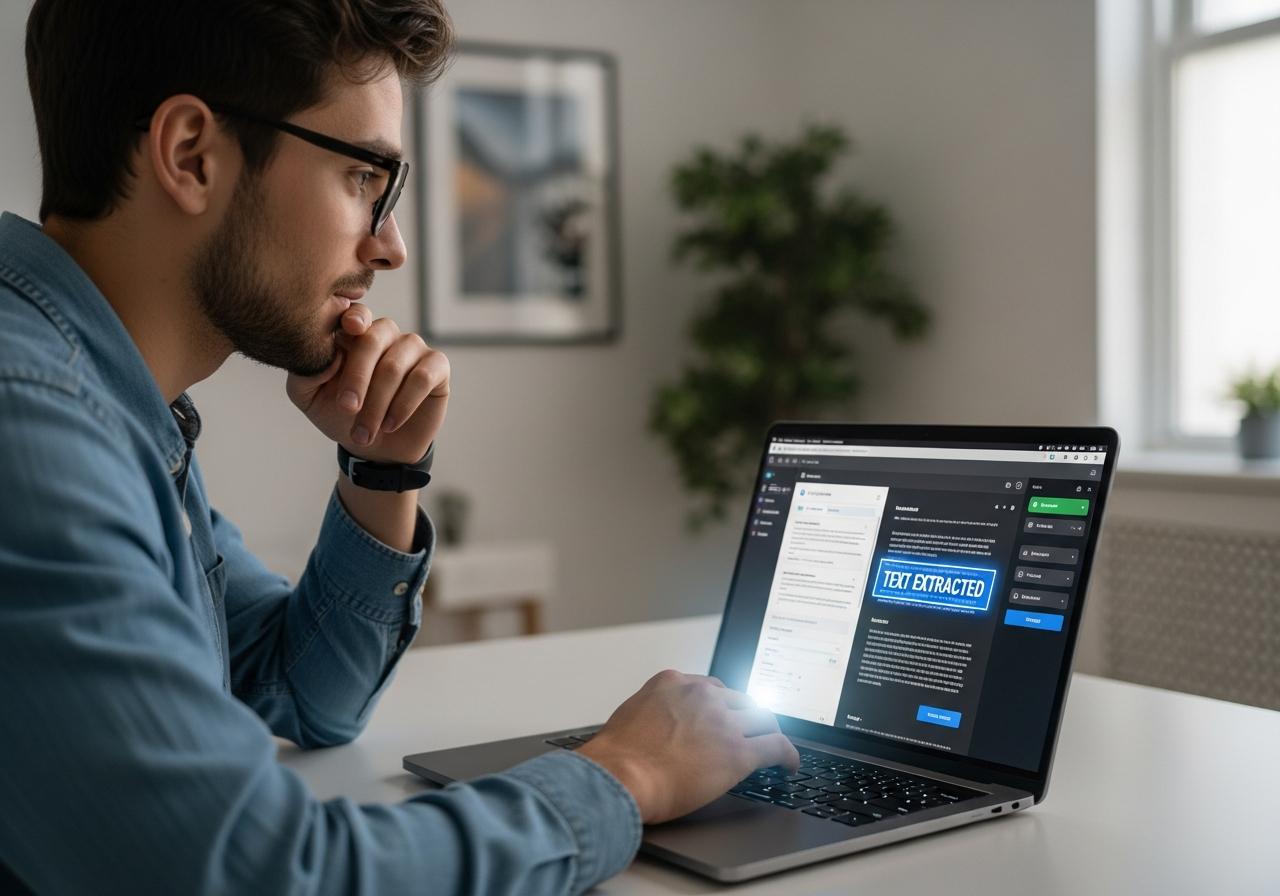
No matter what device you use, there is a built-in or easy way to extract text from screenshots AI.
For Windows Users: Using Snipping Tool and Microsoft Copilot
Windows 10 and 11 have made great strides in desktop applications for OCR.
- Open the Snipping Tool.
- Capture your screenshot.
- Click the “Text Actions” button (it looks like a scanned document icon).
- Select “Copy all text”.
- Alternatively, paste the image into Microsoft Copilot and ask it to “extract the text from this image.”
For Mac Users: Leveraging the Power of Native Live Text
Mac users have it easiest with Live Text.
- Open the screenshot in “Preview” or “Photos”.
- Hover your cursor over the text in the image. The cursor will change to a text selection tool.
- Click and drag to highlight the text.
- Press
Cmd + Cto copy. This works seamlessly for extract text from image mac AI.
For iPhone Users: Copying Text Directly from Photos and Camera
To extract text from screenshot iphone AI:
- Take a screenshot or open an existing photo.
- Look for the “Live Text” icon (a square with lines) in the bottom right corner.
- Tap it to highlight all text.
- Tap “Copy” or perform actions like calling a phone number directly.
For Android Users: The Simplicity of Google Lens
For extract text from screenshot android AI:
- Open the screenshot in Google Photos.
- Tap the “Lens” button at the bottom.
- Tap “Text” in the bottom menu.
- Select the text you want and tap “Copy text” or “Listen” to hear it read aloud.
How to Choose the Perfect AI Text Extraction Tool for Your Needs
With so many best AI OCR tools available, selecting the right one depends on your specific requirements.
Assess Your Needs: One-Time Use vs. High-Volume Bulk Processing
If you only need to copy a recipe or a quote, free tools like Google Lens or imagetotext.info are sufficient. However, if you are a business processing hundreds of invoices, you need a tool that supports bulk processing and automation, such as Nanonets or Eden AI OCR.
Check for Accuracy: Does it Handle Different Fonts and Handwriting?
Not all OCR is created equal. For standard typed text, almost any text converter will work. But for handwritten text, complex mathematical formulas (image to text math), or artistic fonts, you should lean towards advanced models like Microsoft Copilot, NoteGPT, or ABBYY FineReader.
Consider the Platform: Do You Need an Online Tool, Desktop App, or Mobile App?
- Mobile: Stick to system tools (Live Text/Google Lens) for speed.
- Desktop: Snipping Tool or Tesseract (for devs) are best.
- Web-based: QuillBot or NoteGPT are great if you are working across multiple computers and need a no login required or cloud-based solution.
Review Output Formats: Do You Need Plain Text, Word, or PDF?
If you just need to paste text into an email, TXT format is fine. However, if you are reconstructing a document, look for tools that export to Word or searchable PDF. ABBYY and Nanonets excel at maintaining formatting during the image to word ai conversion.
Conclusion
The era of manual transcription is over. With the powerful and accessible extract text from screenshots AI tools listed above, extracting text is no longer a chore but a simple, instant task. Whether you are using Google Lens for quick mobile scans, Nanonets for professional documents, or Snipping Tool for everyday Windows tasks, there is a solution tailored to you.
By choosing the right tool for your device and needs, you can reclaim countless hours, improve your accuracy, and significantly boost your daily productivity. We at LIEN MMO encourage you to stop typing and start scanning today.
Ready to revolutionize your workflow? Pick one of the free tools from our list and experience the magic of AI-powered text extraction right now!