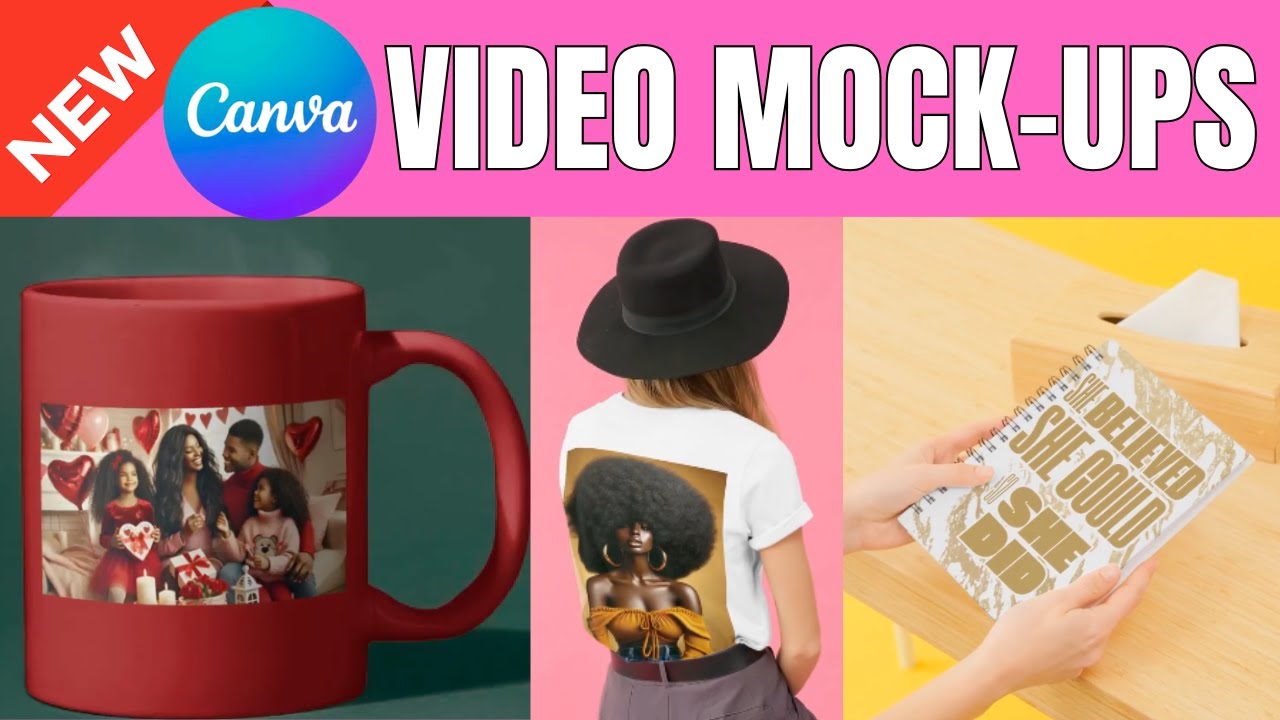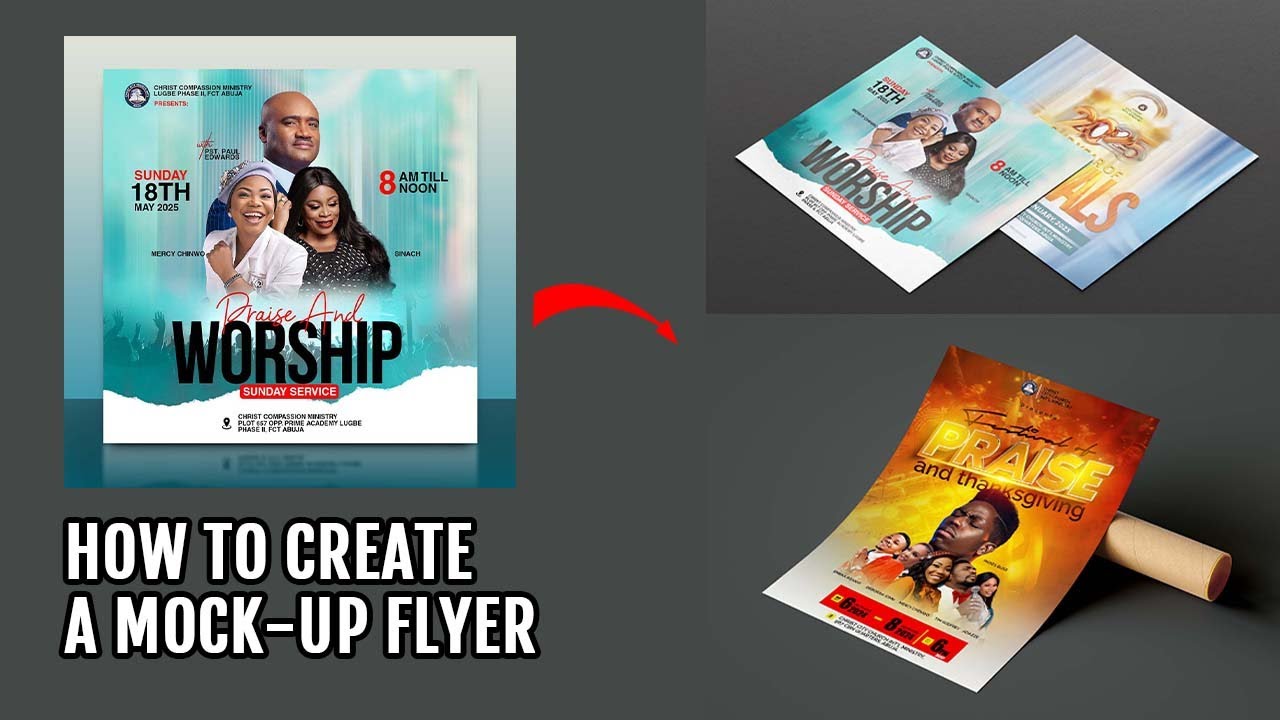
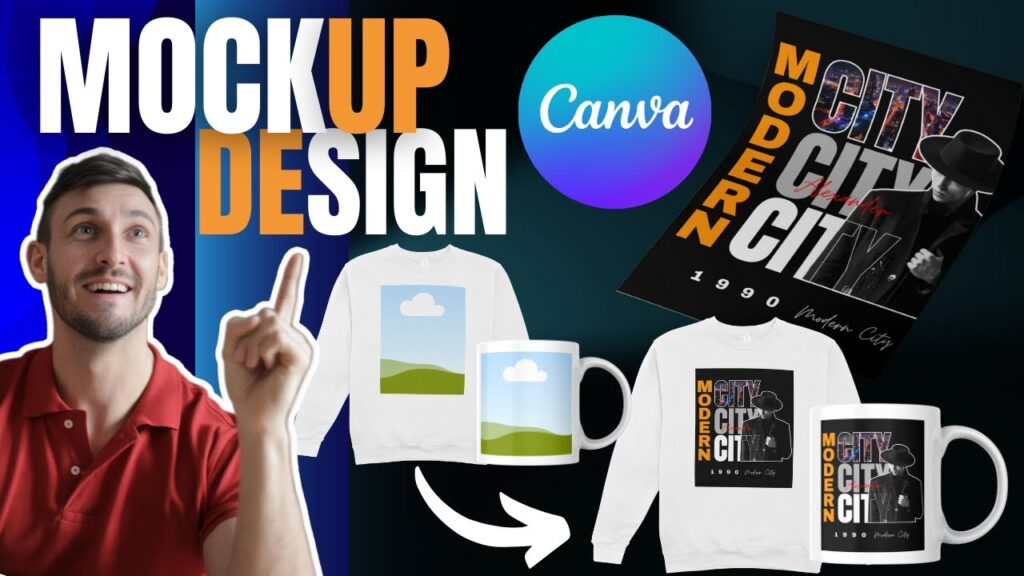
Stop letting a tight budget limit your brand’s potential. You can create stunning, professional-looking product mockups directly in Canva for free, helping you showcase your products and boost sales without needing a Pro subscription. This guide to using canva mockup free tools will walk you through the simple, step-by-step process. Learn to transform your designs into high-quality visuals that capture customer attention and drive conversions, from t-shirts and books to digital products.
Why High-Quality Mockups Are Your Secret Weapon for Boosting Sales
In today’s visually-driven market, the quality of your product images can make or break a sale. Potential customers can’t touch or feel your products, so they rely on visuals to make a purchasing decision. High-quality mockups serve as a powerful bridge, closing the gap between the digital and physical worlds and offering a compelling glimpse into how your products fit into their lives.
Build Instant Trust and Credibility with Professional Visuals
First impressions are critical. When a potential customer lands on your product page, they make a split-second judgment about your brand’s professionalism. Pixelated images or designs slapped onto a plain background can scream “amateur,” eroding trust. Professional mockups, however, showcase your products in the best possible light, conveying quality, attention to detail, and credibility. This helps build the confidence needed for a customer to click “add to cart.”
Help Customers Visualize Products in a Real-World Context
A great mockup helps customers imagine themselves using your product. A t-shirt design looks more appealing on a model than as a flat image. A digital planner is more enticing when displayed on a tablet screen with a coffee cup nearby. By presenting your products in a realistic context, you help customers connect with them on an emotional level, making the desire to own them much stronger. This is a key part of effective product showcase and e-commerce visuals.
Increase Conversion Rates on E-commerce Platforms and Social Media
The ultimate goal of e-commerce visuals is to convert viewers into buyers. Studies have consistently shown that higher-quality images lead to higher conversion rates. By using a canva mockup free generator, you can create eye-catching, shareable images for platforms like Etsy, Shopify, and Instagram. These professional visuals stand out in crowded feeds, drive more traffic to your store, and ultimately increase sales without any extra cost.
Your Step-by-Step Guide to Creating Free Mockups in Canva
Canva has made creating professional mockups incredibly accessible with its built-in tools. You don’t need to be a design expert. At LIEN MMO, we guide our clients through this process constantly, and they are always amazed at how simple it is. Here’s how you can do it too.
Finding the Free Mockup Generator in Canva’s ‘Apps’ Section
The magic begins in Canva’s “Apps” section. This is your gateway to a host of powerful features, including the free mockup generator.
- Log in to your Canva account.
- Create a new design or open an existing one.
- On the left-hand editor panel, click on “Apps.”
- In the search bar that appears, type “Mockups” or “Smartmockups.” You will see an app icon labeled “Mockups.” Click on it to get started.
A Walkthrough of the ‘Smart Mockups’ Feature
Once you open the Mockups app, you’ll see a vast library of templates. These are categorized for easy navigation, including options for print, apparel, technology, and more. You can browse through popular choices or use the search bar to find something specific, like a “mug” or “iPhone.” Importantly, many of these are available to free users.
This feature, often called Canva Smart Mockups, is a game-changer for anyone needing quick, high-quality mockups without technical skills.
How to Upload Your Design and Adjust It for a Perfect Fit
After selecting a mockup template, the next step is to add your design.
- Upload your design (e.g., your logo, t-shirt graphic, or ebook cover) to Canva by dragging it into the editor or using the “Uploads” tab.
- Drag your uploaded design and hover it over the mockup template. Canva will automatically place and adjust your image onto the object.
- If the fit isn’t perfect, you can select the mockup and click the “Adjust” or “Fill” settings to fine-tune the size and position of your design until it looks just right.
Downloading Your Final Mockup Without Watermarks
One of the biggest advantages of using Canva’s native mockup tool is the clean, professional output. Once you are happy with your creation, simply click the “Share” button in the top-right corner, then select “Download.” You can choose your preferred file format (like PNG or JPG) and download your high-quality mockup completely free of watermarks.
Unlocking More Possibilities: How to Create Custom Mockups Without Canva Pro
While the “Smart Mockups” app is fantastic, you might want more creative control or a unique look. The good news is you don’t need a Pro account for this. Here’s how to use Canva for free mockups with a more hands-on approach.
The Manual Drag-and-Drop Method: Using Free Stock Photos as Your Base
Canva’s photo library is filled with high-quality, free stock images that can serve as a base for your mockups.
- Go to the “Elements” tab and search for a suitable photo, such as “person holding a phone,” “blank t-shirt,” or “desk with a laptop.”
- Choose an image that has a clear, well-lit surface where your design will be placed.
- Upload your design and place it as a new layer over the stock photo. Resize and rotate it to match the perspective of the object in the photo.
Adjusting Transparency and Shadows to Create Realistic-Looking Mockups
To make your manual mockup look believable, you need to blend your design with the background photo. Select your design layer and use the transparency slider (the checkerboard icon in the top-right menu) to reduce the opacity slightly. This helps it look like it’s part of the image, not just sitting on top. For an even more realistic effect, you can search for “shadow” in the “Elements” tab and add a subtle drop shadow element beneath your design to give it depth.
Finding and Using Free Canva Frames for Digital Product Displays
Frames are one of Canva’s most underrated features for creating Canva free digital product mockups. These elements act as placeholders that you can drag your images into, automatically cropping them to fit the frame’s shape.
- In the “Elements” tab, search for “frames.”
- Scroll to find frames shaped like computer monitors, tablets, or phones.
- Add the frame to your design, then simply drag your website screenshot or digital product image directly into the frame. It will snap perfectly into place, giving you a clean and professional digital mockup in seconds.
Practical Examples: Creating Popular Product Mockups for Free
Let’s apply these techniques to some of the most common needs of online sellers and creators. This is how you create product mockups Canva free for various popular items.
Free Canva T-Shirt & Apparel Mockups for Your Clothing Brand
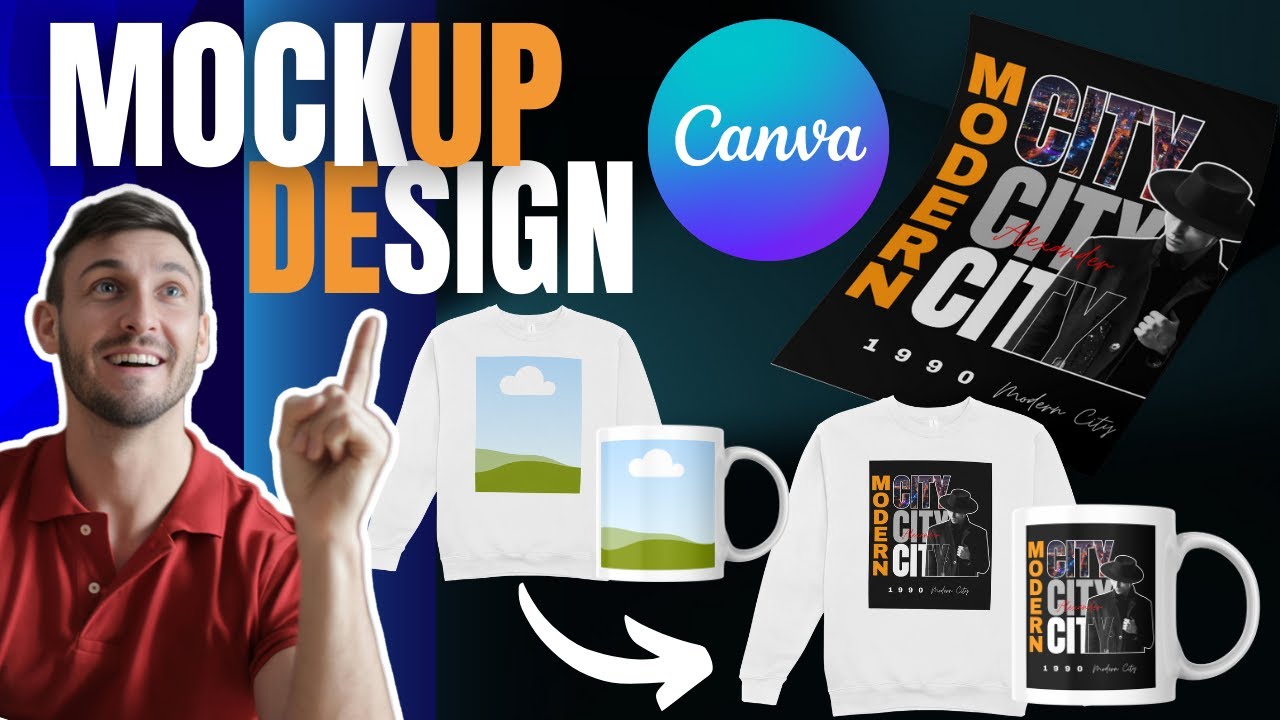
If you have a print-on-demand or clothing brand, free Canva t-shirt mockups are essential. Use the “Smart Mockups” app and search for “t-shirt,” “hoodie,” or “tote bag.” You’ll find a variety of models and flat-lay options. Simply select one, add your design, and you have a professional photo for your online store. High-quality visuals are crucial for standing out, and having great print-on-demand visuals can significantly impact customer perception and sales.
Designing Stunning Free Canva Book Mockups to Promote Your eBook
Authors and content creators can easily create compelling visuals for their books. Search for “book” in the Mockups app to find templates for both physical books and e-readers. A beautiful book mockup can dramatically increase interest in your new release when shared on social media or in your newsletter. It makes your digital product feel tangible and valuable.
How to Create Free Canva Logo Mockups for Brand Presentations
When presenting a new logo to a client or showcasing it in your portfolio, context is key. Use mockups to show how the logo will look on business cards, storefront signs, or websites. This helps clients visualize the brand in the real world. You can find many options for free Canva logo mockups in the app, helping you present your work with professionalism.
Showcasing Your Website with Free Canva Website Mockups
For web designers and digital marketers, showing off a new website design is simple. Use a laptop or monitor frame from the “Elements” section or find a tech-themed scene in the “Smart Mockups” app. Placing your website screenshot into one of these Canva free website mockups provides a polished and impressive way to display your portfolio to potential clients.
As you can see, you don’t need expensive software or a Canva Pro account to create compelling mockups that elevate your brand. By leveraging Canva’s built-in free tools and applying a few creative techniques, you can produce professional visuals that build customer trust, showcase your products effectively, and ultimately help you increase sales. We at LIEN MMO believe that powerful tools should be accessible to everyone, and the canva mockup free features are a perfect example. Start creating today and see the impact for yourself.
Ready to bring your products to life? Open Canva now, follow the steps in this guide, and start creating your first free mockup in minutes!